
Q:
How can I hook up my 5.1 speakers to my computer?
A: Please read your user manual, and follow the instructions connecting your speaker system carefully. Using Edifier's 3 Audio connecting color cables (3.5 Stereo Headphone plug converter to 2 RCA) connect your speakers to the computer's Sound Card as in the illustration shown below.
(SB Live 5.1 Sound Card)
Brown (Center & Sub output); Blue (Input); Pink (Microphone); Green (Front output); Black (Rear output)
If using a different Sound Card, please check your Sound Card owner manual for correct connections.
After completion of the connections, it may be necessary to further configure the Sound Card. (Please make sure to install the correct and latest Sound Card drivers before performing any final adjustments).
Q: Why can't I hear sound
from my speakers?
A: If you can't hear sound from your speakers, it means the speakers are not
connected properly, the sound card isn't setup correctly, or the speakers could be
defective.
First, check the speaker-to-computer connections. Make sure the
cable connected to the "Audio In" jack on the speakers is also connected to the
"Speaker Out" or "Line Out" jack on the sound card.
You can test the sound card jack by connecting headphones to it.
If headphones work, you know the sound card is set up correctly. Try connecting the
speakers to a portable sound device such as a Walkman, AM/FM radio, or portable CD player.
Plug the speakers into the headphone jack, but make sure you lower the volume so you do
not overpower the speakers.
If the speakers do not work through the headphone jack, they may
be defective.
If they do work on an alternate sound source, check the system
Volume Control. To do this, double click on the speaker icon in the Windows taskbar. Make
sure that the volumes are at a reasonable level and that they are not muted.
Q: Why can't I hear sound
from my rear speakers (4.1 and 5.1 Systems)?
A: When you can only hear sound from the front speakers, it usually means the sound
card does not support surround sound, and/or the sound card is not configured correctly,
the speakers are connected incorrectly or the speakers could be defective.
First, make sure your sound card supports surround sound 4.1. A
surround sound card should have a front and rear speaker jack. If you are unsure if your
sound card supports surround sound or if you are unsure your surround sound card supports
surround sound 4.1, please contact the manufacturer.
Make sure the rear audio cable is plugged into the correct port.
On most surround sound cards, the rear speakers socket is black and the front speakers'
socket is green. If you do not have a surround sound card, make sure you use the proper
adapter or use the M3D button for simulated surround sound. The correct adapter is a 3.5mm
splitter, with one side being 3.5mm female and the other being 2x3.5mm male.
If the speakers are connected correctly, test them on a portable
sound device such as a Walkman or portable CD player. Plug the speakers into the headphone
jack, but make sure you lower the volume so you do not overpower the speakers. If the
speakers do not work through the headphone jack, they may be defective. If they do work in
a Walkman or other source, check the PC system Volume Control. To do this, double click on
the speaker icon in the Windows taskbar. Make sure that the volumes are at a reasonable
level and that they are not muted.
Q: What is the difference
between digital and analog signals for speakers?
A: Analog signals are recorded in their original form, for example, recording to a
tape. Analog signals can be read and amplified, but can also be damaged by the
environment, and degraded with ancillary equipment which reduces sound quality.
Digital signals are recorded in binary code (numbers that consist
of only 0 and 1) and reproduce at the source, and this is one reason the signal can't be
damaged or degraded. Another advantage of digital signals is they can be compressed,
taking less space to store then an analog signal.
Q: What is Dolby digital?
A: Dolby digital is a sound format featuring six-channel sound with separate left and
right sounds and a low frequency-effects channel. Dolby digital is a standard when it
comes to sound formats for DVDs, set-top boxes, etc.
Q: I find 4.1, 5.1, and 6.1
surround sound Dolby DD, DTS, and AC3 to be confusing. How is it set up?
A:Your PC or Mac will need to be equipped with a 3rd party 5.1 surround sound card to
be fully functional. You may use a 4.1 surround card, or a 2 channel sound card for basic
functionality.
Optical or Coax hook up
Simply attach your PC or Mac with an optical output to the Edifier S2.1, S5.1 and S5.1M
via RCA cables or optical cable in the case of the S2.1D model. If your PC or Mac supports
Dolby Digital 5.1 or DTS, the Edifier S5.1 and S5.1M will allow you to enjoy surround
sound.
Simply select the digital input you are using by pressing the input button. Then press the
effect button until you reach Dolby Digital mode you wish.
If you are listening to music, which is made in only 2 channels, you can up mix your music
to simulated surround sound. Simply select the effect you like most:
NORMAL, DVD, MUSIC, or GAME.
6--channel analog input
This input configuration is the same as the above and allows you to attach your Edifier
S5.1and S5.1M to a sound card, which supports Dolby 6.1 channel surround sound modes.
Simply follow the instruction manual coding on the back of the Edifier S5.1and S5.1M to
hook up your speaker system. Most sound cards will come with useful software to test each
channel for correct balance. Please check with the sound card Manufacturers website for
further details. Another very useful source for information is www.dolby.com and access the Dolby Knowledgebase.
Q: Does it matter where I
place the Subwoofer?
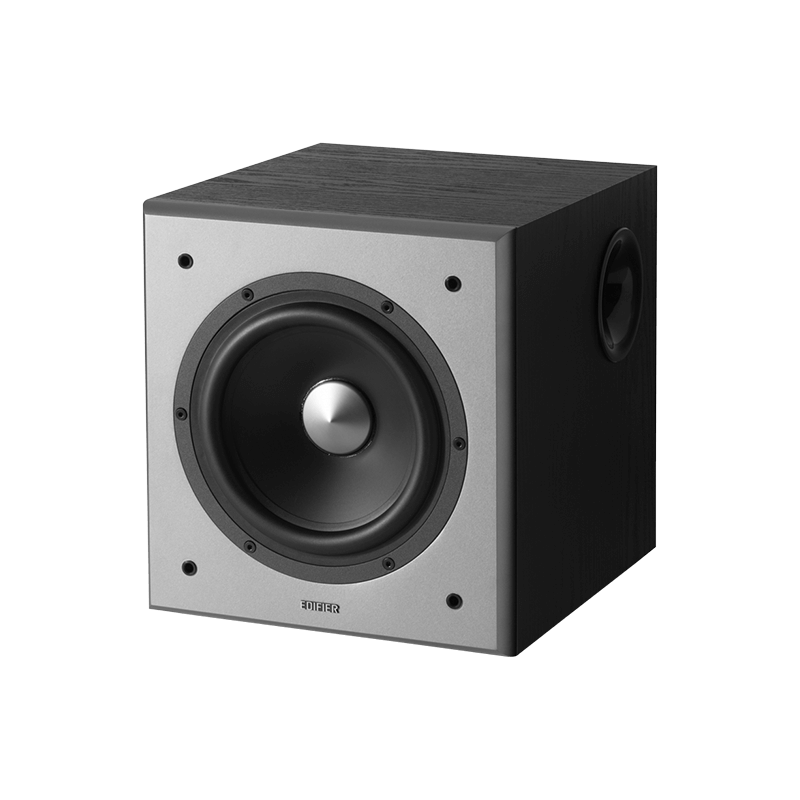
A: All Edifier subwoofers are designed so you can place them anywhere in the room.
There is no need to place the subwoofer in the corner or tuck it away, however, placing
the subwoofer in a corner will increase bass output due to boundary re-enforcement.
Q: Are Edifier speakers
digital or analog?
A: The current Edifier model S2.1D accepts digital input for front speakers and rear
speakers. The other models in current production accept analogue inputs.
Q: Why don't I get surround sound when I play movies or games?
A: You may not hear surround sound when you play movies or games if your sound card is
not surround sound capable. The movie/game must also support surround sound. If you are
not sure of either of these, check with your sound card manufacturer and read the
documentation that came with your game/movie.
Q: Can I extend the reach of the satellite speakers?
A: With all Edifier systems, you can extend the reach of your satellites by using
regular 18-gauge speaker cabling. It is most important to note the phasing of the cables
however, i.e. positive- to-positive, and negative-to-negative markings on the cable
itself.
Q: Why do I hear static
from my speakers?
A: Loose cables or cables that are not grounded properly can cause static. Check the
connections to make sure all cables are connected correctly. Also, try adjusting the input
volume from the media player you are using or from the sound control panel in your system
tray.
Q: Can I use Edifier
speakers on other devices like Sony PlayStation?, CD players, TVs, etc?
A: Yes, you can use all Edifier speakers on almost any device if you have the proper
adapter. One side of the adapter should be a 3.5mm female jack, and the other will be what
ever you are trying to use (ie; 1 1/4'', RCA, etc). You can purchase an adapter at a local
electronics store.
Q: How do I clean my
Edifier speakers?
A: Safety Warning! Ensure system is unplugged from AC wall outlet before cleaning!
It is recommended that a soft dry cloth be used to wipe all surfaces. For more stubborn
stains a slightly damp soft cloth with a mild dish soap solution may be used. DO NOT use
lacquer thinner, alcohol, benzene, thinners, gasoline, or any abrasive cleaner, as the
finish will be damaged. The Edifier Warranty does not cover such damage to the finish of
the speakers. DO NOT use excessive water on the cleaning cloth due to electrical
safety.
Q: My Edifier system is
magnetically shielded, what does this mean?
A: It is impossible to completely eliminate all the stray magnetic fields from a
moving coil speaker. The reason for this is the permanent magnets used in the motor
systems of moving coil drivers cause stray magnetic fields that can extend at significant
strengths beyond the walls of the enclosures. If the speaker is placed close to a normal
TV or computer monitor (not a plasma or LCD screen), these stray fields can distort the
picture on the screen.
To prevent this happening, the individual magnets of each driver must be shielded. In the
most common type of structure, using a ring magnet, this involves gluing an extra magnet
on the back plate of the main magnet, magnetized in the opposite polarity. A steel cup is
placed over the whole magnet structure, the inside of the base being glued to the rear of
the second magnet, and the sides extending close to the top plate, thus reducing the stray
magnetic fields to an acceptable level.
If you do suffer picture distortion from stray magnetic fields,
the only option is to place the speaker a little further from the TV or PC monitor, as
some screens are more sensitive than others.
Q: My Edifier System can
sometimes make some unwanted noises, why?
A: "Noise" is a general term referring to any sound a speaker system makes
that is not part of the original source material. There are many different types and
sources of noise, each with its own solutions. Below is an explanation of the most common
types of noise, what causes them, and how to minimize their occurrence and effects.
Hum or Buzz
There are four common causes of humming and buzzing:
1. Sound card If the humming or
buzzing gets louder or softer with changes in the volume setting, this is an indication of
noise coming from the sound card. In this case, check all of the connections to the sound
card to make sure they are all completely plugged in and secure. Then, adjust the level
setting of the sound mixer to obtain the best performance. Generally, you should leave
your CD volume settings in the mixer at full and reduce the sound card's master output
level down. For information on doing this, please refer to your sound card manufacturer's
documentation.
2. Unused input cables If you are not using all of the source inputs to your
speaker system (such as using a 5.1 speaker system with a 4 channel sound card), the
unused input cables will tend to pick up noise.
3. High-power devices If you are using other high powered devices on the same
electrical circuit, they may be causing hum or buzz. If so, discontinue their use while
you are using your speaker system. Examples of such devices include microwave ovens,
halogen lamps, power tools, etc.
Also note that high-power devices with dimmer switches (such as
halogen torchiere lamps) will cause an especially pronounced buzzing effect. To minimize
hum or buzz, make sure that the dimmer switch on these products is either all the way on
or off.
4. Electric Polarity In many countries, the US being one, the electrical power
grid is polarized. In these countries, the power plugs are designed so they can only be
inserted into the wall socket in a single direction. For example, in the US one of the
plug blades is larger than the other. To avoid humming and buzzing, both your computer and
speaker system must be properly plugged into polarized outlets. If your wall outlets do
not have polarized plugs, as in the case of many older homes, and you are using adapters
to plug these power cords into the wall, it is possible that the polarity of either your
computer or your speaker system is reversed. In many other countries, such as most of the
European Continent, wall sockets are not polarized at all - making it even more difficult
to properly match the computer and speaker system.
To solve the problem you will need to remove the power plug from
the wall outlet, rotate the plug 180¡ã, and re-insert it into the wall. Try this for your
speaker system power cord, your computer power cord, or both. You should be able to find a
combination that will eliminate the humming and buzzing
Pops and Clicks
There are three main causes of pops and clicks:
1. Sound Card Many pops and clicks
are created by the sound card. There are two common causes: sound card quality, and older
or mismatched drivers. If the overall volume level of the pops and clicks goes up and down
as you change the volume on the speaker system, the noise is being generated by your sound
card. Lower quality sound cards don't include the necessary circuitry to cleanly remove
noise from the sound output. If you are using an older or lower quality sound card, it is
suggested upgrading your sound card.
The other primary cause is older or mismatched drivers. Make sure you are using the latest
drivers for your sound card usually available from the manufacturer¡¯s website.
2. Multi-tasking If you are running more than one program on your computer that
accesses the sound system at the same time, small pops and clicks can be common. This is a
function of your computer and/or sound card. A common example is using a program that
generates occasional audio feedback (such as beeps or other sound effects) while listening
to an MP3 track in the background. The solution is to turn off audio feedback in the first
application so that the background MP3 track is uninterrupted.
Stutter
A stuttering sound track is an
indication of either insufficient or conflicting computer resources. Check to make sure
that your computer has sufficient processor power and memory to handle the applications
you are running, especially if you are using a software DVD player. De-fragmenting your
hard drive may also help. If you are sure you have sufficient resources, check to make
sure that you don't have any conflicting IRQ or DMA channels.
Hiss
All
high-powered amplification devices - everything from multimedia
systems to home theater systems to movie theater sound systems
-- generate some level of background noise, or hiss. In
addition, low quality sound cards with poor signal-to-noise
ratios can generate a significant amount of steady hiss
that is reproduced on the speakers. Under normal conditions
at a normal listening distance, the hiss coming from the
sound system should not be noticeable. In a very quiet room,
or if you place your ear very close to the speaker, you
may hear a very low level hiss. This is normal, but should
be completely masked by normal music and game sounds. Also,
note that the satellites in most Edifier speaker products
are designed to be wall-mounted. Wall mounting the speakers
provides two benefits: 1) it moves the all of the satellites
further away from your listening position, making any hiss
less noticeable and 2) it moves all of the satellites further
away from each other, providing better channel separation
and surround sound ambiance.
If
you have other concerns or need more information, please contact
Edifier Customer Service & Support for further assistance
at Email: main@edifier.com
|